In Windows the AdvancedMiner Server may be installed as a service. No other action is necessary in that case. If the AdvancedMiner Server is not installed as a service it has to be launched manually by running server_start.bat.
On Windows if the service was installed, it is by default run during system startup. If you want to use a distributed AdvancedMiner Server please note that AdvancedMiner Server Components have to be installed on each machine. You will need a single license key for each machine the server component is run on.
For Linux 3 scripts are provided. The following scripts, located in the Server directory run several AdvancedMiner Server components (each script can be executed with a --start or --stop option):
the AdvancedMiner Server requires the license key file for each machine it is run on.
server.sh -The same functionality as the Server service on Windows.
"server.sh --start"
mr.sh -The same functionality as the MR service on Windows.
"mr.sh --start"
executor.sh -The same functionality as the Executor service on Windows.
"executor.sh --start"
gdbase.sh -The same functionality as the GDBASE service on Windows.
"gdbase.sh --start"
>alternatively, the AdvancedMiner Server can be started (with the built-in executor and metadata repository) by the script server_start.sh.
The scripts mr.sh and executor.sh define the variable WAIT_FOR_SERVER. If set to true, it is the Linux equivalent of the dependency on the Server service on Windows. If the Executor or MR is run on a different machine than the main server, WAIT_FOR_SERVER should be set to false.
The scripts for starting the server in an interactive mode are also provided: server_start.bat on Windows and server_start.sh on Linux. Typing bye, exit or quit in the console of the running script will shut down the AdvancedMiner Server.
On the Linux platform you can start AdvancedMiner Server Components during system startup. Each Linux distribution has init scripts. Their location depends on the distribution. For details check your distribution's documentation. A script which starts AdvancedMiner Server may look like this:
#!/bin/bash
GORNIK_HOME=/usr/local/AdvancedMiner/Server
PATH=$PATH:$GORNIK_HOME
PATH=$PATH:/usr/java/bin:/usr/java/jre/bin
JAVA_HOME=/usr/java

case "$1" in

start)
echo -n "Starting AdvancedMiner Server Components..."
server.sh --start
mr.sh --start
executor.sh --start
echo "OK"
;;

stop)
echo -n "Stop AdvancedMiner Server Components..."
server.sh --stop
mr.sh --stop
executor.sh --stop
echo "OK"
;;
esac
Note
It may be necessary to change the paths to match your system installation. The AdvancedMiner Server Components need to be executed after network interfaces are initialized.
Note
It is possible to customize running options (such as maximal heap size for the server). See the Administration chapter in Technical Documentation for more details.
The AdvancedMiner Server requires the license key file for each machine it is run on.
To obtain the license key file open the following web page in your browser:
http://algolytics.pl/support/licensekey/
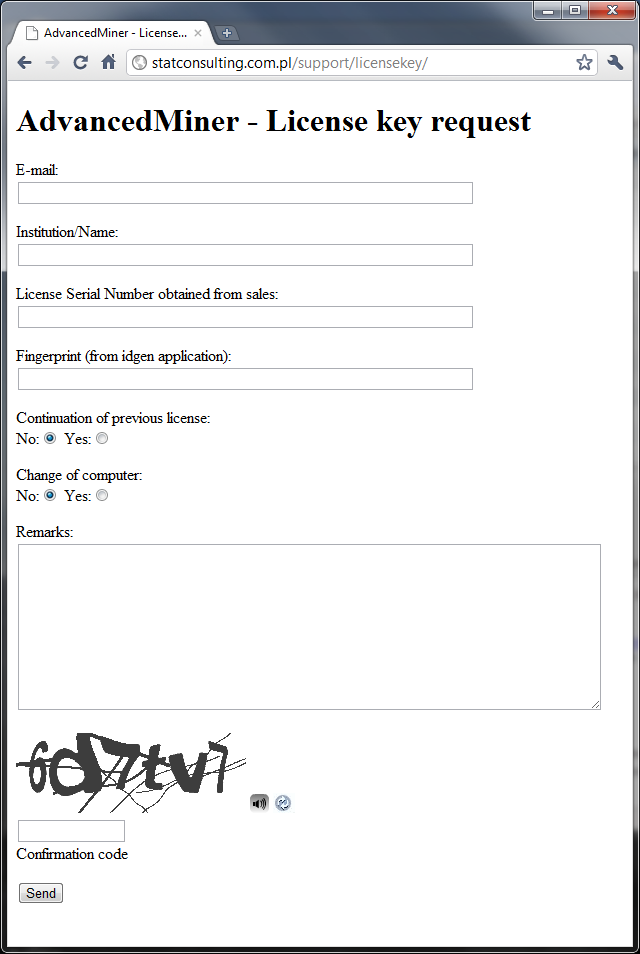
Enter the requested information into the E-mail, Institution/Name and License Serial Number fields.
In order to obtain the machine's fingerprint run the idgen application. This file is located in the Server directory (GORNIK_HOME/Server). It must be run by a user with the same privileges that the user running the server (this user should have full access to reading from the hardware). The code generated by the idgen application does not contain any sensitive information, only a fingerprint of the hardware.
To generate the fingerprint on Windows run idgen.exe.
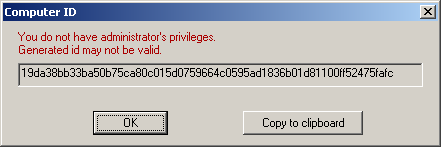
On Linux the idgen file should be executed in a console. On AIX execute the idgen_aix file instead.
user@hostname:~$ ~/GORNIK_HEAD/Server/idgen
WARNING: you do not have full administrative permission. Generated code may not work.
Your code: b8b7b0acaf2836510abc513de9663ad70a98fb51e0e56901d92768ecde7720a4
Copy the generated code and paste it into the Fingerprint field. Please provide the information about the operating system (ex. Windows, Linux, other unix-like systems) on which the key was generated in the Remarks field.
Indicate the appropriate answers for the questions about license continuation and change of computer hardware. You may also provide any additional information in the remarks field.
After providing all the information type in the confirmation code displayed in the picture and click Send. Following the verification of the information you entered the license.key file will be sent to the provided e-mail address.
Copy the received license.key file to the Server directory (GORNIK_HOME/Server)
Some errors may be caused by:
an invalid or absent license key,
not enough privileges for the user that starts the server (check which user starts the server during boot-up),
some ports that the server wants to use are already used by another application: close that application or change the ports used by the AdvancedMiner Server in the *.xml files,
if the server_start.bat script was closed in a different way than by typing exit, bye or quit, some server processes are probably still running: close them before running another instance of the server.
An important thing when working in the distributed mode is to use a fully qualified host name or IP address in the database alias definition. If you install the server and the executor on separate machines, please do not use the name "localhost" or "127.0.0.1" in aliases. The host names are translated into different machine addresses either on the server or the executor machine and cause errors.
If any error occurs, more information can be found if following places:
the 'error' file located in the AdvancedMiner Server directory (it will not be created in the case of insufficient permissions),
the log directory (it will not be created in the case of insufficient permissions),
on Windows in the standard Application log.